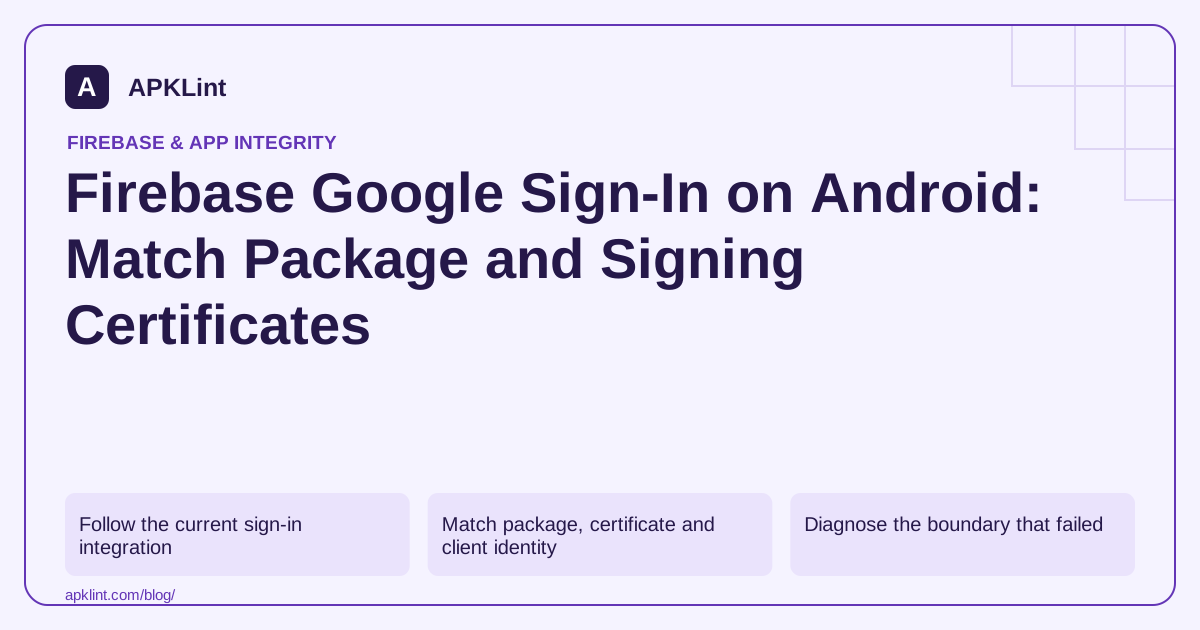
Follow the current sign-in integration
The Firebase Android Google sign-in guide uses the current Android credential flow and Firebase Authentication integration. Do not mix an older GoogleSignInClient tutorial with current Credential Manager examples without a deliberate migration plan.
Enable the Google provider for the intended Firebase project and use configuration belonging to the correct Android app registration.
Match package, certificate and client identity
| Build source | Certificate to verify |
|---|---|
| Local debug | Debug signing certificate |
| Locally signed release | Your local release/upload certificate as applicable |
| App installed from a Play testing or production track | Play app-signing certificate |
| Internal App Sharing | Its separate distribution signing behavior |
Play App Signing explains why the upload key and app-signing key have different roles. A successful upload does not mean the installed APK uses the upload certificate.
Diagnose the boundary that failed
Determine whether the failure occurs when obtaining a Google credential, exchanging it with Firebase, or authorizing a backend request after sign-in. Keep the exception type and redacted status details.
Do not log ID tokens, access tokens or user credentials in public issue reports. A backend must verify the token intended for its trust boundary rather than accept a client-supplied user ID.
Test every distributed identity
Install the actual Play-delivered test build and complete sign-in using the same Firebase environment intended for release. A locally installed release APK is not a complete substitute for this test.
After changing registered fingerprints or configuration, rebuild as required and verify that the running artifact contains the intended configuration.
Use APKLint to inspect, not authenticate
The signing and Firebase tools can help compare package metadata and certificate fingerprints. They do not access your OAuth settings or certify a credential exchange. Use them to narrow identity mismatches, then confirm the complete sign-in and authorization flow in your app and backend.
Follow the credential through three distinct stages
The current flow first obtains the supported Google credential through Credential Manager, then exchanges the Google ID token for a Firebase credential, then uses the resulting Firebase session for the app's authenticated operations. Follow the Firebase Google sign-in guide for the actual integration. The server client ID requested by the Google credential configuration is not interchangeable with an Android OAuth client ID.
If credential acquisition fails, capture its exception category without printing token contents. If acquisition succeeds but Firebase rejects the exchange, inspect the provider configuration and Firebase project identity. If Firebase sign-in succeeds but a private API denies access, investigate that API's token verification and resource authorization. Repeating the account chooser cannot repair an authorization rule on the server.
Test the account flow across delivered identities
Create a small matrix for local debug, locally signed release and the actual Play test-track build. Record the package name and signing certificate fingerprint for each. Confirm that the expected registration covers the distributed artifact, especially when Play App Signing changes the certificate relative to the upload credential. Use a synthetic account with access only to test data.
Exercise successful sign-in, user cancellation, an unavailable credential and sign-out followed by sign-in again. A cancellation should return the user to a usable screen rather than an endless loading state. Check that account-specific local content is cleared or switched correctly on sign-out so the next account does not see the previous account's cached private data.
For a custom backend that trusts Firebase identity, send the credential type that backend is designed to verify and derive the user identity from validated claims. Do not substitute a client-provided user ID or assume a Google token and a Firebase token have identical audiences and issuers. Test a second user requesting the first user's private resource after both have valid sessions. A successful authentication flow identifies the user; the resource decision still needs its own correct authorization check. Preserve these distinct results with the release identity so a later signing or configuration change can be diagnosed at the right boundary.
Sources and further reading
Reference review: 29 September 2026. Examples illustrate the workflow; check your installed versions, release artifact and account-specific Console requirements before applying them. This guide is not a claim that APKLint executed your project or verified your private account.

Android inspection tools and practical release guides. About APKLint · Report a correction