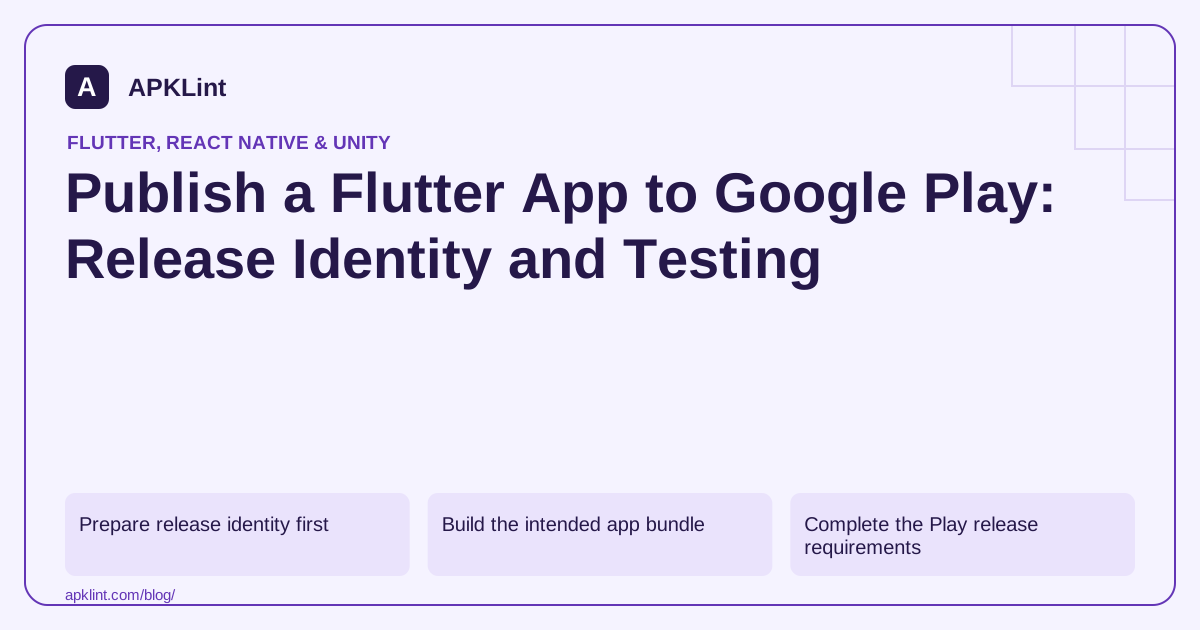
Prepare release identity first
Follow the Flutter Android deployment guide. Verify application ID, version name/build number, icon and release signing before creating the artifact.
Keep the upload keystore and passwords private. Play App Signing separates the upload identity from the certificate used for APKs delivered to users.
Build the intended app bundle
flutter build appbundle --release
Use the selected flavor and entry point when the project has them. Record the generated artifact path from the build output rather than uploading an older similarly named file.
Do not rely on debug-only network permissions, endpoints or plugin behavior.
Complete the Play release requirements
The Play release guide covers track creation and release preparation. Check the current target API requirement, app access instructions, Data safety, content rating and any account-specific testing requirements.
A successful upload does not mean the release is approved, rolled out or visible to every country.
Test the Play-delivered build
| Feature | Why test after Play delivery |
|---|---|
| Google/Firebase sign-in | Distributed signing certificate |
| Billing | Store and account environment |
| Native plugins | Device-specific packaged libraries |
| Asset loading | Bundle/device delivery behavior |
| Crash reporting | Correct release identity and symbols |
Use a supported test track and eligible tester account. Internal App Sharing has different signing behavior and is not identical to an internal testing track.
Retain a release record
Archive source revision, Flutter version, dependency lockfiles, signing fingerprint, AAB hash and diagnostic symbols. APKLint's Flutter, bundle and release-checklist tools can support artifact review; they cannot approve a Play submission or verify private console declarations. Keep actual test and review outcomes with the release before expanding availability.
Follow production flavor configuration into Play delivery
Consider a Flutter project with staging and production entry points. Confirm the selected flavor, Dart entry point, application ID and service endpoints before building the bundle. A release build can still target staging if its configuration is wrong. Record the command and digest of the actual output selected for upload, including its version code.
The Flutter deployment guide describes the bundle workflow and signing setup. Keep the upload credential private, and distinguish it from the app-signing certificate used for packages delivered through Play. Register external integrations against the certificate appropriate to the actual test or production distribution.
Exercise integrations in the intended test track
Use a supported testing track and an eligible test account to install the delivered candidate. Verify sign-in, a native plugin and any asset or billing flow that depends on store delivery. A locally installed APK can be valuable evidence for application behavior while still missing the store's packaging, signing or account context.
Test an update over the previous supported version with synthetic saved data. Check database migrations, preferences and any pending offline work. If Dart obfuscation is enabled, verify symbolization from this exact candidate; keep Android mappings and native symbols as separate diagnostic artifacts when the application includes those layers. Retain the tester's installed version code with the result so a cached older installation cannot be mistaken for the newly uploaded candidate.
Review the current console tasks and account-specific requirements through the official release workflow. Keep artifact upload, review approval and availability to users as separate states. A bundle accepted by the upload form has not necessarily reached the production audience. Ensure app-access instructions work for a reviewer without relying on a developer's already authenticated device, and reconcile SDK behavior with the submitted data disclosures. After the test track is accepted, preserve its observed results with the release record before expanding distribution. APKLint can inspect package characteristics and support the checklist, but its output does not establish private console completion, policy approval or successful store delivery.
Sources and further reading
- Flutter: Build and release an Android app
- Google Play: Prepare and roll out a release
- Google Play: Use Play App Signing
Reference review: 29 September 2026. Examples illustrate the workflow; check your installed versions, release artifact and account-specific Console requirements before applying them. This guide is not a claim that APKLint executed your project or verified your private account.

Android inspection tools and practical release guides. About APKLint · Report a correction