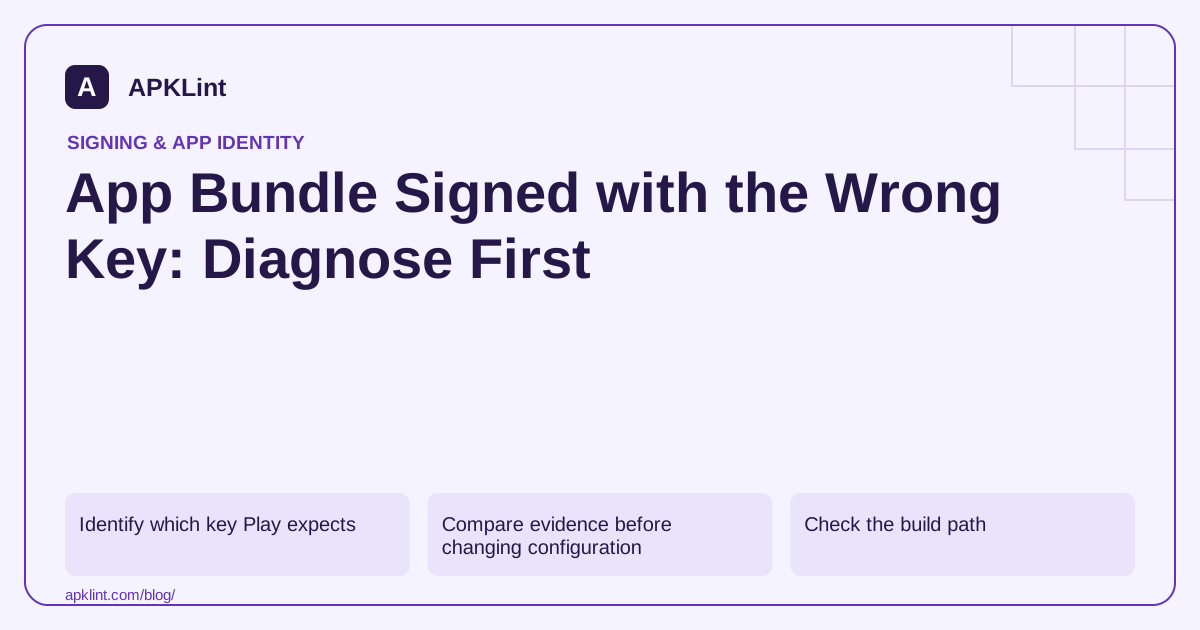
Identify which key Play expects
For an app enrolled in Play App Signing, the upload key authenticates what you send to Play. The app-signing key identifies APKs delivered to users. They can be different. A local certificate copied from a store-installed APK may therefore be the wrong reference for an AAB upload. Play App Signing.
Open the app's Play App Signing area under the current Protected with Play navigation and locate the upload-certificate details. Google's documentation uses Play Store distribution/protection labels in this area; follow the signing entry shown in your account rather than an old tutorial's Setup menu.
Compare evidence before changing configuration
Record the expected SHA-256 or SHA-1 fingerprint named in the error and inspect the certificate for your intended upload keystore:
keytool -list -v -keystore upload-keystore.jks -alias upload
Enter the password interactively. Compare the same fingerprint algorithm on both sides. A mismatch between SHA-1 and SHA-256 strings is not evidence of different keys.
Then inspect the AAB's signing certificate with a JAR-aware signing tool or the build's signing report. apksigner is for APKs, not the AAB publishing container. Android signing workflow.
Check the build path
| Possible cause | What to inspect |
|---|---|
| Debug build uploaded | Selected variant and signing configuration |
| Wrong alias | Alias used by the release signing task |
| CI secret replaced | Secret version and mounted keystore path |
| Another app's keystore | Application ID and release credential inventory |
| Key reset not active yet | Reset status and effective date in Console |
Rebuild after correcting the configuration and inspect the new artifact before uploading. Do not rely on a filename ending in release.aab.
Reset only when the upload key is genuinely unavailable
For an enrolled app, use the documented upload-key reset process with the required account permissions. Resetting an upload key is not a replacement for the existing app-signing identity. Follow the instructions and activation timing shown by Play, then update CI and local release documentation consistently.
Confirm the fix without hiding the cause
Save the successful build's version code, certificate fingerprint and configuration revision. Remove obsolete CI credentials only after the new path is confirmed and recovery copies are handled securely.
APKLint's AAB and certificate inspection tools can help organize the evidence. They cannot reset a Play key, validate your account's authorization or guarantee that a bundle will pass every release check.
Prove which alias signed the submitted bundle
Suppose the release keystore contains an upload entry and a second entry used by another application. The build completes, but Play rejects the AAB's certificate. Compare the configured alias with the expected upload identity and inspect the actual bundle's signing certificate using an appropriate JAR-aware tool. Finding the correct certificate somewhere in the store does not establish that the signing task selected it.
Record the selected variant, store reference, alias and public fingerprint without exposing credentials. Then make one configuration correction and rebuild. Compare the replacement artifact before uploading again. This controlled sequence distinguishes a wrong alias from a secret-version change, an obsolete CI mount or a key reset that has not become active.
Use the verifier for the artifact you have
An AAB is the publishing container, while an APK is an installable package. Do not apply an APK-only verifier to the bundle and interpret its failure as proof that the upload key is wrong. The Android signing guide documents the release flow, and the installed JDK's tooling can inspect the relevant JAR signing information. Keep the distinction visible in the diagnostic record.
If you compare against a certificate from a store-installed APK, confirm whether that is the app-signing identity rather than the upload identity. They may differ under Play App Signing. Use the expected certificate identified for the upload operation and the same fingerprint algorithm on both sides. Similar hexadecimal formatting does not make SHA-1 and SHA-256 values interchangeable.
Once the corrected bundle is accepted, retain the artifact hash and configuration revision that resolved the rejection. A subsequent build should reproduce the intended signer without manually selecting a different file. Keep upload-key recovery as a separate option for an actually unavailable credential, rather than using a reset to conceal an unresolved build-selection error.
Sources and further reading
Reference review: 29 September 2026. Examples illustrate the workflow; check your installed versions, release artifact and account-specific Console requirements before applying them. This guide is not a claim that APKLint executed your project or verified your private account.

Android inspection tools and practical release guides. About APKLint · Report a correction