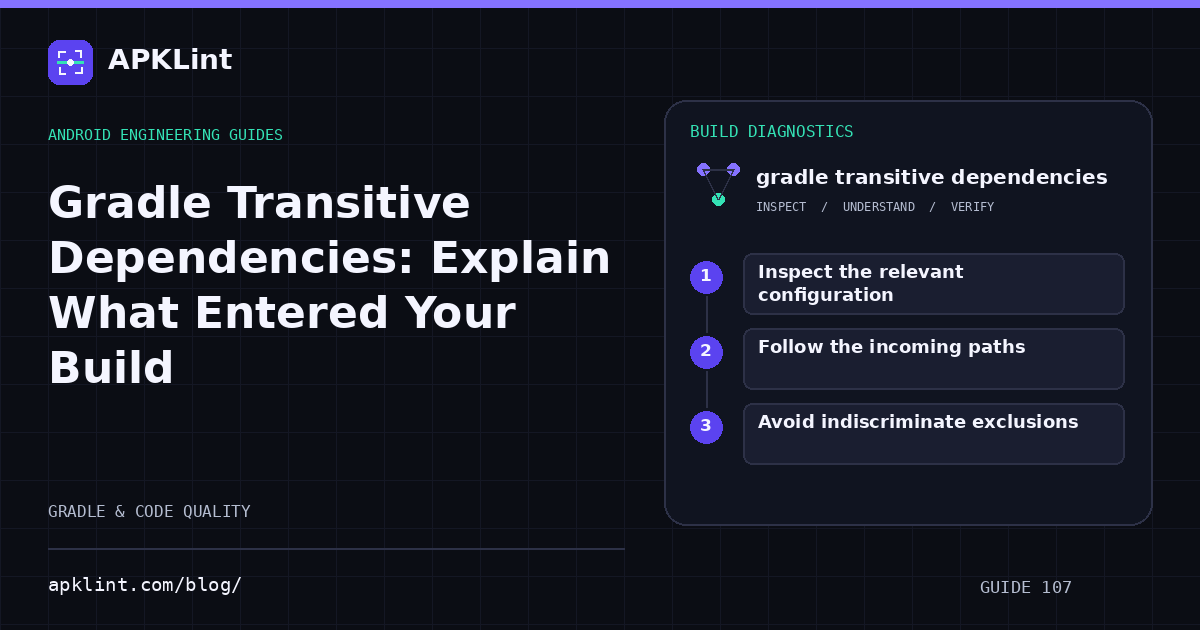
Inspect the relevant configuration
For a typical Android application module, begin with:
./gradlew :app:dependencies --configuration releaseRuntimeClasspath
Use the actual module and variant configuration in your project. A debug or test classpath can differ from the release delivered to users.
The Gradle dependency-report guide explains the graph notation and selected versions. Save the report with the commit and toolchain used to produce it.
Follow the incoming paths
| Observation | Meaning to investigate |
|---|---|
| Library appears under an SDK | SDK metadata introduced it transitively |
| Same library appears on several paths | Removing one parent may not remove the dependency |
| Requested version points to another version | Resolution selected a different version |
| Library exists only in a test configuration | It may not belong to the release runtime graph |
Use dependencyInsight to ask why a particular module was selected rather than reading a large tree by eye alone.
Avoid indiscriminate exclusions
Excluding a transitive library can make a build compile while causing a runtime failure when the parent SDK calls it. First determine why the dependency exists and whether the provider documents it as optional.
Prefer upgrading to compatible parent dependencies, aligning versions through supported constraints or replacing an obsolete SDK. If an exclusion is justified, test the feature path that used the removed library.
Compare before and after
Record the old and new resolved graphs, then inspect the built APK or bundle. A dependency declaration disappearing is not proof that its classes vanished from every artifact, especially when another dependency bundles or shades similar code.
Use the checker with build evidence
APKLint's Gradle tools can review configuration snippets and flag suspicious declarations. They cannot resolve every repository, plugin and variant from a fragment. The authoritative graph comes from the build itself; combine that with package inspection before claiming a dependency, vulnerability or size contribution has been removed.
Sources and further reading
Reference review: 22 September 2026. Examples illustrate the workflow; check your installed versions, release artifact and account-specific Console requirements before applying them. This guide is not a claim that APKLint executed your project or verified your private account.

Android inspection tools and practical release guides. About APKLint · Report a correction